

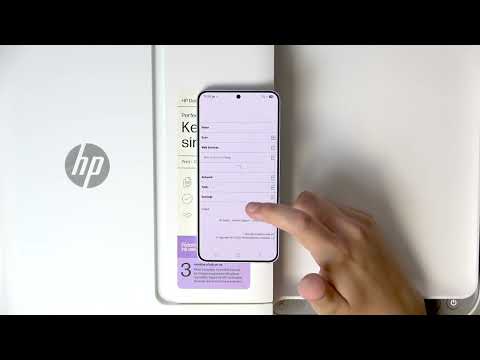
If you want to manage web services on your HP DeskJet 4220e printer, this video will guide you through each step. Learn how to access advanced settings, view web services summary, print the info page to find your printer’s IP address, configure proxy settings, and understand how to remove web services if needed. Managing web services on the HP DeskJet 4220e helps you control connectivity, security, and network features for your printer. Whether you need to update settings, troubleshoot, or simply explore the available options, this tutorial will make the process clear and easy to follow.
How to manage web services on HP DeskJet 4220e?
How to print the info page and find IP address on HP DeskJet 4220e?
How to set up proxy server for web services on HP DeskJet 4220e?
0:00 Introduction
0:09 Accessing advanced settings in the app
0:20 Opening web services settings
0:35 Viewing web services summary
0:41 Printing the info page (find IP address)
0:57 Configuring proxy settings
1:21 Removing web services (advanced)
1:33 Final tips and outro
#HPDeskJet4220e #HPPrinter #WebServices #PrinterSettings
Find out more:
https://www.hardreset.info/devices/hp/hp-deskjet-4220e/
Follow us on Instagram ► https://www.instagram.com/hardreset.info
Like us on Facebook ► https://www.facebook.com/hardresetinfo/
Tweet us on Twitter ► https://twitter.com/HardResetI
Support us on TikTok ► https://www.tiktok.com/@hardreset.info
Use Reset Guides for many popular Apps ► https://www.hardreset.info/apps/apps/